.png?width=450&height=117&name=MavenLogo_Horizontal_WhiteType01%20(1).png)
add a vehicle
Use this method for one‑off additions and quick corrections.
Steps:
-
Open Fleet Admin > Vehicles.
-
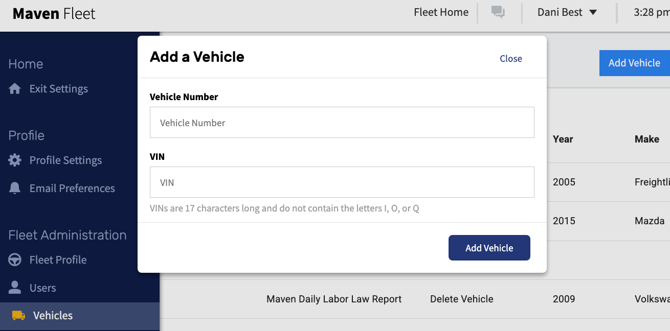
Select Add Vehicle
-
Enter required fields:
-
Unit / truck number
-
VIN
-
Asset type
-
-
Add specifications:
-
Make, model, year
-
License plate and state
-
Terminal and group tags
-
Company (if multi‑fleet environment)
-
-
Save the vehicle.
After creation, the vehicle appears on the Vehicles list and becomes available for:
-
Driver checkout / association
-
HOS, DVIR, and telematics data capture (once a VDA or data source is associated)
Bulk Vehicle addition Upload
Use bulk upload for large onboarding events or data corrections across many units.
-
Download the latest vehicle upload template (CSV or Excel) from the Fleet Portal Help or Admin section.
-
Populate rows with vehicle information:
-
Required: unit number, VIN
-
Strongly recommended: asset type, make, model, year, license plate, terminal, group tags
-
-
Validate data:
-
Ensure VIN and unit number match existing systems of record.
-
Remove duplicates or test entries.
-
-
Upload the file using Import / Bulk Upload in Fleet Admin > Vehicles.
-
Review any validation or error messages and correct the file as needed.
-
Confirm the import and verify records in the Vehicles list.
Bulk upload is also used to:
-
Update attributes (move multiple vehicles to a new terminal or group)
-
Standardize naming and codes across the fleet