.png?width=450&height=117&name=MavenLogo_Horizontal_WhiteType01%20(1).png)
Edit and update customer locations
-
Open the fleet portal URL for the organization.
-
Sign in with manager or admin credentials.
-
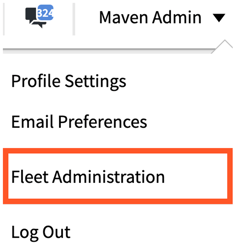
From the top navigation, under Maven Admin click on Fleet Administration
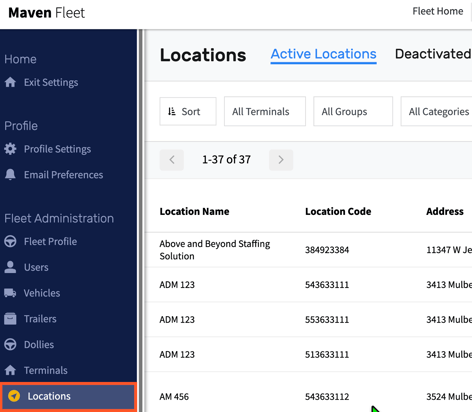
- Click the Locations tab on the left.
Only users with appropriate admin or planning permissions can add or edit locations.
permissions can add or edit locations.
Find a location to update
-
Open Admin → Locations.
-
Confirm the status filter (for example, Active, Inactive, or All).
-
Use search and filters (name, code, terminal, group, category, tags, address) to locate the location.
-
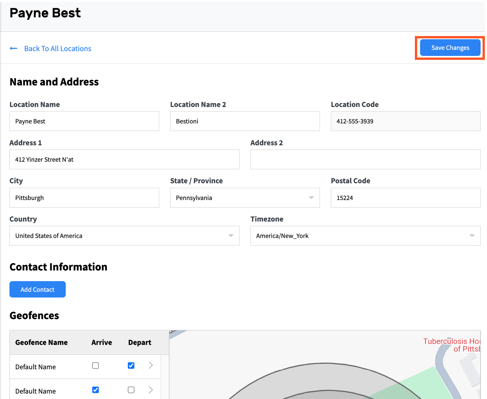
Select the location to open the details view.
-
Update allowed fields such as:
-
Location availability (receiving days/times)
-
Routing days
-
Time zone
-
Terminal or group
-
Location category and tags
-
Geofence
-
-
To change status:
-
Set status = Inactive (or use Deactivate) to remove the location from active planning flows while preserving history.
-
Set status = Active (or use Activate / Reactivate) to return an inactive location to active use.
-
-
Save changes.
Changes affect how future planning and dispatch activity uses the location. Existing trips or orders may not update automatically, depending on configuration.
Update geofences for a location
Maven Admin supports editing geofences for existing locations.
-
From the location details page, open the map or geofence section.
-
View the current geofence (circle or polygon).
-
Adjust the geofence shape or configuration as needed.
-
Save changes.
Accurate geofences improve automatic arrival and departure detection at that location.