.png?width=450&height=117&name=MavenLogo_Horizontal_WhiteType01%20(1).png)
Overview
Use this workflow to generate and export an asset history report from Maven Fleet.
Steps to generate an asset history report
-
Log in to the Maven Fleet Portal
-
Open your browser and sign in to the Maven Fleet Portal with your fleet admin or compliance credentials.
-
-
Open the Reports Center
-
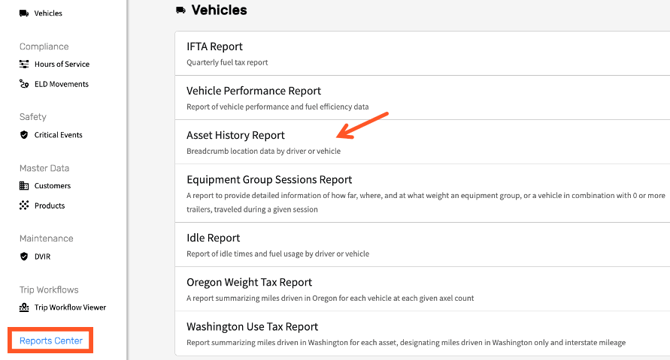
In the left-hand navigation, go to Reports Center
-
Under Vehicles, select Asset History Report from the list of available reports.
-
-
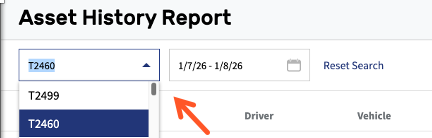
Select the vehicle and date range
-
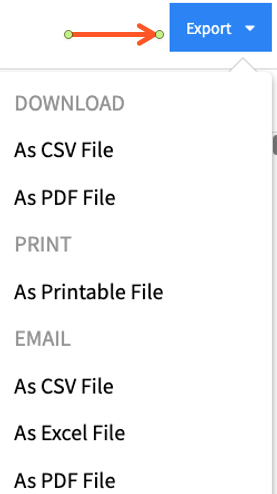
On the right side of the screen, click the Export button
- Select how the file will be exported: downloaded, printed or emailed
- Select file format: Excel, CSV or PDF
- Select file format: Excel, CSV or PDF
-
Generate and Download
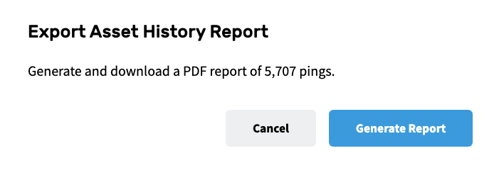
- Click Generate Report
- Click Generate Report