.png?width=450&height=117&name=MavenLogo_Horizontal_WhiteType01%20(1).png)
When to Use This
Use this play when:
-
A route instance is showing as incomplete on the Dispatch Board even though, in reality, all work is finished.
-
You need to force a route into a state where it can be completed, and the normal in‑app actions are failing or unavailable.
-
Support/engineering has confirmed that completing all the stops in the database is the correct fix.
Step 1: Identify the Route in the Dispatch Portal
-
Open the Dispatch Portal and locate the route you need to complete.
-
Get one of the following identifiers:
-
Manifest number, or
-
routeInstanceId
-
How to find the routeInstanceId
-
On the Dispatch Board, hold the Option key and click on the route.
-
A small detail view will appear that includes the routeInstanceId.

-
Copy this value somewhere safe—you’ll need it for your SQL queries.
You can also use the manifest number if that’s what you have, but you’ll still want to confirm the routeInstanceId in the database in the next step.
Step 2: Open the Correct Database
-
In your SQL client (e.g., MySQL Workbench), connect to pd production write.
-
Make sure you are in the
pdroutes_servicedatabase.
You will be working with two tables:
-
pdroutes_service.route_instances -
pdroutes_service.route_instance_stops
Step 3: Confirm You Have the Correct Route
Before changing anything, double‑check that the routeInstanceId you have from the Dispatch Portal actually matches the route you intend to modify.
In pdroutes_service.route_instances, run a query like:
SELECT *
FROM pdroutes_service.route_instances
WHERE routeInstanceId = <routeInstanceId>;
Verify details such as:
-
Manifest number
-
Driver / truck / terminal
-
Date
If anything looks wrong, stop and re‑verify the ID in the Dispatch Portal before proceeding.
Step 4: Mark All Stops on the Route as Complete
Once you’re sure you have the correct routeInstanceId, update the statuses for all stops on that route.
-
Go to the
pdroutes_service.route_instance_stopstable. -
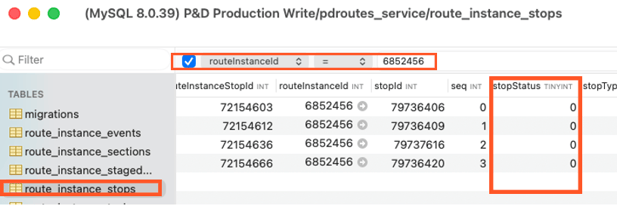
Filter by the routeInstanceId:
SELECT * FROM pdroutes_service.route_instance_stops WHERE routeInstanceId = <routeInstanceId>; -
Confirm these are the stops that should be completed.
-
When you’re confident they’re correct, update the stop statuses:
UPDATE pdroutes_service.route_instance_stops
SET stopStatus = 2
WHERE routeInstanceId = <routeInstanceId>;
In this context:
-
stopStatus = 2means Completed.
This marks all stops on that route instance as complete in the database.
Step 5: Complete the Route in the Dispatch Portal
After the database update:
-
Go back to the Dispatch Portal.
-
Refresh or reload the Dispatch Board for the appropriate terminal/date.
-
Open the route you just updated.
-
Use the normal “Complete Route” action for that route.
Because all stops tied to the routeInstanceId are now in a completed status, the route should complete successfully.
Notes and Cautions
-
Production impact: These steps directly change production data. Only run them if you are authorized to do so.
-
All stops affected: The
UPDATEstatement affects every stop tied to that routeInstanceId. Do not run it unless the entire route should be finished. -
Auditability: If possible, capture:
-
The routeInstanceId
-
Before/after screenshots from the Dispatch Portal
-
The SQL you ran
This can help future debugging if something looks off later.
-
-
If the route still won’t complete:
-
Re‑check the
route_instance_stopstable to confirm all stops arestopStatus = 2.
-