.png?width=450&height=117&name=MavenLogo_Horizontal_WhiteType01%20(1).png)
access driver log
- Open Compliance → Hours of Service n the Maven Fleet Portal.
-
Search for and select the driver.
-
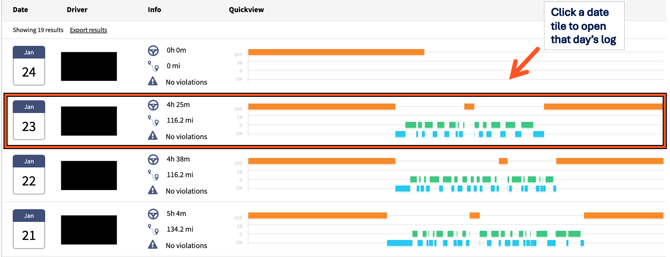
In the Date column, click the date tile for the day that needs review.
-
The Daily Log for that date opens.
-
Use the date selector in the Daily Log to move to other days
Daily Log components
|
Component |
Description |
|---|---|
|
Graph / Grid |
Visual timeline of duty statuses across a 24‑hour period. |
|
Events List |
Each duty status change with time, location, source (auto/manual), and notes/annotations. |
|
Certifications |
Indicates whether the selected day is certified or uncertified by the driver. |
|
Violations |
HOS violations displayed as alerts with violation type and timestamp. |
|
Inspections / Annotations |
Notes, roadside inspection references, and edit history entries tied to specific events or time ranges. |
Tips
-
Hover over or expand events to view full location details and annotations.
-
Use the previous/next day arrows to quickly scan a driver’s behavior over multiple days (for example, a full week).