.png?width=450&height=117&name=MavenLogo_Horizontal_WhiteType01%20(1).png)
The DVIR page in Maven Fleet shows driver vehicle inspection reports (DVIRs) submitted from the Maven mobile app. Use this page to review inspections and track whether defects are resolved.
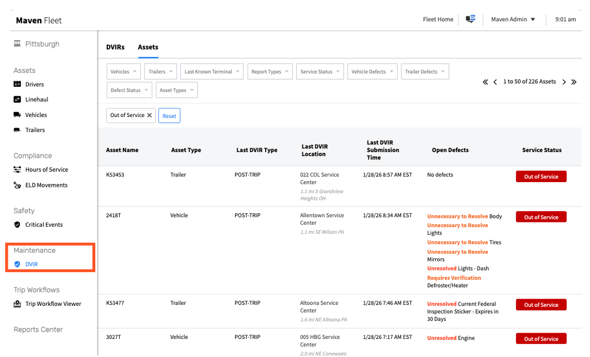
Open the DVIR page
-
Go to
https://manager.mavenmachines.com. -
In the left navigation, click Maintenance.
-
Under Maintenance, click DVIR.
The DVIR page opens with a list of inspection reports.
Search and filter DVIRs
Use the controls at the top of the page to find specific inspections:
-
Search by truck number.
-
Search by driver name.
-
Filter by date range.
-
Filter by status (for example, all, defects only, action required).
Apply filters and press Enter/Return. The list updates to show only matching reports.
Open a driver vehicle inspection report
-
From the results list, click a DVIR entry.
-
The Driver Vehicle Inspection Report view opens. It shows:
-
Company, inspection type (pre‑trip or post‑trip), date, driver, and location
-
Vehicle details (asset, odometer, license plate, VIN, asset status)
-
Each listed defect, with history of when it was opened and resolved
-
Use this view to see exactly what the driver reported.
Review and update defect status
For each defect section:
-
Read the defect description and any driver notes.
-
Review the history lines (opened by driver, resolved by driver or maintenance).
-
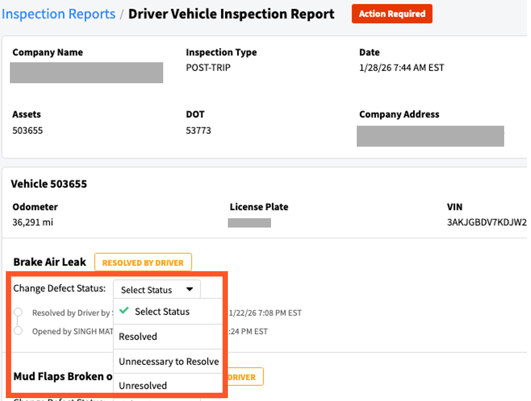
Use the Change defect status dropdown to update the status according to maintenance actions and company policy.
The top of the report shows Action Required when any defect still needs attention. Use the dropdowns to move defects from open to resolved as repairs are completed.
Understand edit limitations
-
Drivers cannot edit or delete submitted inspections in the app.
-
If a driver makes a mistake, the driver must submit a new DVIR with correct information.
-
Fleet users update defect status only; the original report content stays as submitted for compliance and audit history.