.png?width=450&height=117&name=MavenLogo_Horizontal_WhiteType01%20(1).png)
Overview
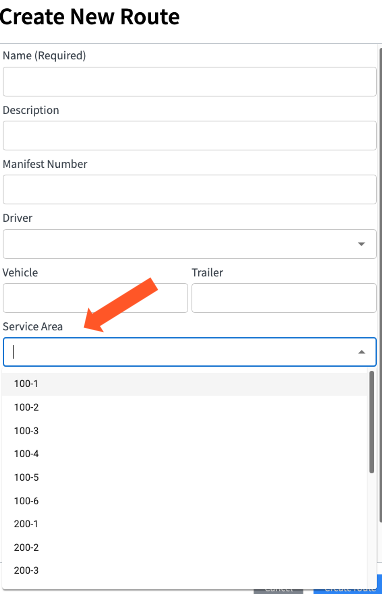
A Service Area is the geographic territory that a terminal covers for pickups and deliveries. It usually corresponds to a specific region, city, or group of ZIP codes that a terminal is responsible for serving.
In Maven, Service Areas are used by customers like PEO, Averitt, and AAA Cooper to organize their pickup and delivery operations. Service Areas must be manually entered into the P&D database in the pdroutes_service.routes table.
This article explains how to create new Service Areas manually and in bulk using SQL.
Required Information Before Starting
Database Table Location
-
Table:
pdroutes_service.routes
Required Fields
-
companyId – Company identifier
-
terminalId – Terminal identifier
-
name – Display name that appears on the dispatch board
-
code – Integration code
-
PEO:
nameandcodemay differ -
Averitt & AAA Cooper:
nameandcodeshould be identical
-
Method 1: Manual Entry (Single Service Area)
Use this method when you only need to add one or a few Service Areas.
Step 1: Find the Terminal ID
-
Go to
https://manager.mavenmachines.com -
Navigate to Fleet Admin > Terminals
-
Select the terminal
-
Copy the number at the end of the URL
Example:
https://manager.mavenmachines.com/admin/terminals/3731
→terminalId = 3731
Step 2: Access the Database
-
Connect to the write database for the customer.
-
Open the
pdroutes_service.routestable in your database management tool. -
Ensure you have permission to modify this table.
Step 3: Add the Service Area Entry
-
Create a new row in the
pdroutes_service.routestable. -
Fill in the required fields:
-
companyId– the customer’s company ID -
terminalId– from Step 1 -
name– the Service Area name (this will display on the dispatch board) -
code– the integration code
-
-
Save the entry.
Step 4: Verify the Entry
-
Confirm that the new Service Area appears correctly in the
pdroutes_service.routestable. -
Ask the customer to:
-
Refresh the dispatch board
-
Confirm that the new Service Area appears and can be used for pickups and deliveries
-
Method 2: Bulk Entry Using SQL (Multiple Service Areas)
Use this method when you need to add many Service Areas at once (for example, during onboarding or a large configuration change).
Step 1: Find the Terminal ID
-
Go to
https://manager.mavenmachines.com -
Navigate to Fleet Admin > Terminals
-
Select the terminal
-
Copy the number at the end of the URL
Example:
https://manager.mavenmachines.com/admin/terminals/3731
→terminalId = 3731
Step 2: Access the Write Database
-
Connect to the write database for the customer.
-
Confirm you are in the correct environment (e.g., production vs staging).
-
Open the
pdroutes_service.routestable in your database management tool.
Step 3: Prepare Your SQL Query
Start with this template:
INSERT INTO pdroutes_service.routes (companyId, terminalId, name, code)
VALUES
(830, 3731, '100-25', '100-25'),
(830, 3731, '100-26', '100-26'),
(830, 3731, '100-27', '100-27'),
(830, 3731, '600-20', '600-20'),
(830, 3731, '600-21', '600-21'),
(830, 3731, '300-19', '300-19'),
(830, 3731, '300-20', '300-20'),
(830, 3731, '600-19', '600-19')
ON DUPLICATE KEY UPDATE
  name = VALUES(name),
  code = VALUES(code);
Step 4: Customize the Query
Update the template for the specific customer:
-
Column 1 (
companyId) – Replace830with the correct company ID. -
Column 2 (
terminalId) – Replace3731with the terminal ID from Step 1. -
Columns 3 & 4 (
name,code) – Replace the example Service Area names/codes with the customer’s actual Service Areas.
Step 5: Execute the Query
-
Run the query in your database management tool.
-
Because of the
ON DUPLICATE KEY UPDATEclause:-
If a Service Area already exists, it will be updated with the new
nameandcode. -
If it does not exist, it will be inserted as a new row.
-
-
Verify that:
-
All expected rows appear in
pdroutes_service.routes. -
The customer can see and use these Service Areas on the dispatch board after a refresh.
-
Important Notes
Duplicate Protection
The bulk SQL method includes duplicate protection via ON DUPLICATE KEY UPDATE. If you try to add a Service Area that already exists (based on its unique key), the existing entry will be updated instead of causing an error.
Company-Specific Behavior
-
PEO: Uses separate
nameandcodefields. -
Averitt & AAA Cooper:
nameandcodeshould match exactly.