.png?width=450&height=117&name=MavenLogo_Horizontal_WhiteType01%20(1).png)
Overview
Use this workflow to generate and export an IFTA report from Maven Fleet for quarterly fuel tax filings or internal audits.
Steps to generate an IFTA report
-
Log in to the Maven Fleet Portal
-
Open your browser and sign in to the Maven Fleet Portal with your fleet admin or compliance credentials.
-
-
Open the Reports Center
-
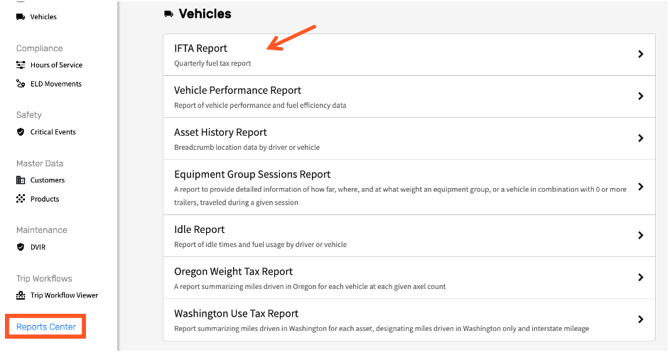
In the left-hand navigation, go to Reports Center
-
Under Vehicles, select IFTA Report from the list of available reports.
-
-
Set your reporting period
-
Choose the start date and end date for the IFTA period.
-
For quarterly filings, match the official IFTA quarter (e.g., Jan 1–Mar 31).
-
-
Apply filters (if available)
-
Filter by fleet, terminal, vehicle group, or specific vehicles if you don’t want to run the report for your entire fleet.
-
Confirm that the correct units are included (e.g., only IFTA-reportable vehicles).
- Select file format: Excel, CSV or PDF
-
-
Generate and download the report
-
Click Generate Report
-
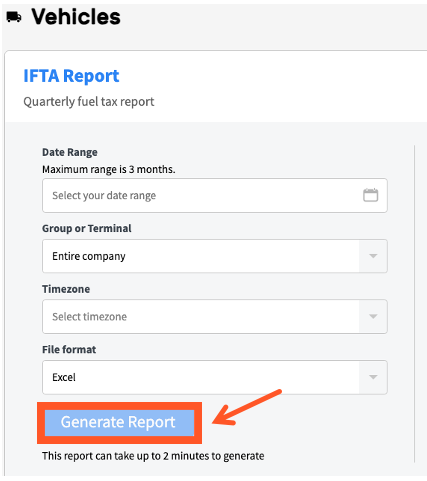
Download may take a few minutes to generate depending on filters. This may take longer for large fleets or long date ranges.
Tips
-
Run test reports for one vehicle or a short date range if you’re validating a new setup.
-
Keep a consistent naming convention for exported files (e.g.,
IFTA_Q1_2026_FleetName.csv). -
If certain vehicles are missing from the report, confirm they are correctly set up as IFTA-reportable in your fleet configuration and try again.