.png?width=450&height=117&name=MavenLogo_Horizontal_WhiteType01%20(1).png)
Table of contents
-
Overview
-
Before optimizing routes
-
Step1: Mark stops as ready to plan
-
Step 2: Open the Optimize Routes screen
-
Step 3: Select which routes to optimize
-
Step 4: Configure the Route Table
-
Step 5: Finalize optimization
-
Step 6: Review optimized routes
Overview
Route optimization in Maven builds efficient delivery routes using your orders, drivers, vehicles, territories, and time constraints.
Use optimization when you want Maven to:
-
Assign stops to the right drivers
-
Reduce miles and drive time
-
Respect delivery windows and territories
-
Balance workload across routes
Before optimizing routes
Complete the following:
-
Upload orders into Maven
-
Mark orders you want to route as Ready to Plan
-
Confirm drivers and vehicles are available
-
Create territories if your operation uses them
-
Verify you have permission to create optimized routes
Step 1: Mark Stops as Ready to Plan
-
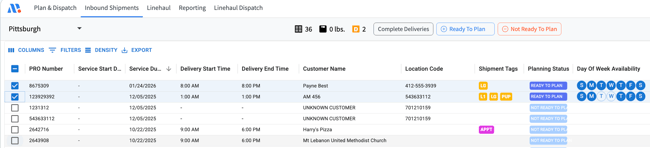
Go to the Inbound Shipments tab
-
Select the orders you want to route
-
Click Ready to Plan
- View ready to plan stops by clicking on the Plan & Dispatch tab
- Under All Stops, click on Ready to Plan Stops
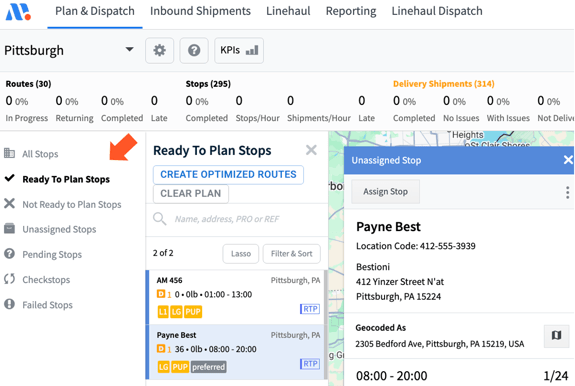
Maven only includes stops marked Ready to Plan during optimization.
Step 2: Open the Optimization table
Open optimization table using option A or B
Option A
-
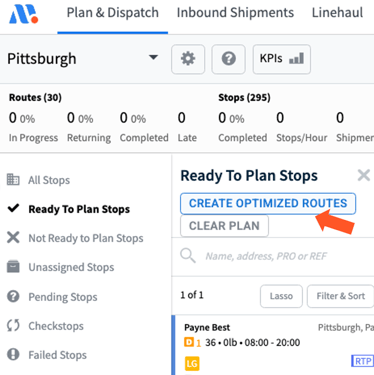
Go to Plan & Dispatch tab
-
Select Ready to Plan Stops
-
Click Create Optimized Routes
Option B
-
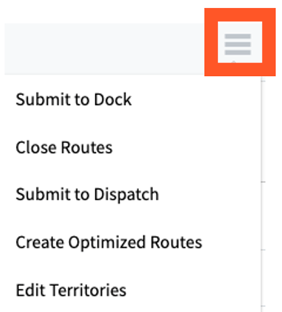
Click on the hamburger icon on the right side of the screen
-
Select Create Optimized Routes
- The Resource board Screen will Pop up
Step 3: Select Stops to Optimize on resource board
-
Once Create Optimized Routes is selected, the Maven Resource Board automatically opens.
-
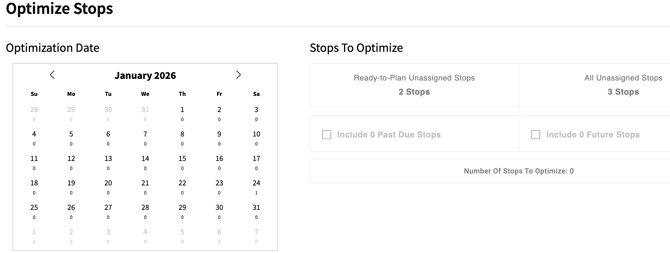
On the calendar, select the date of service
-
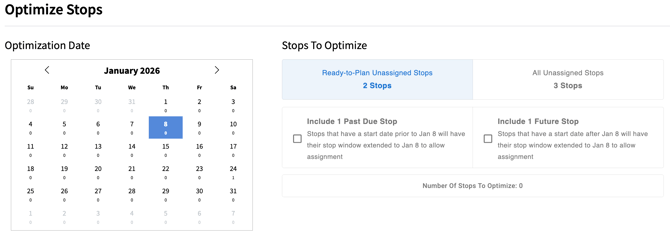
Click on Ready to Plan Unassigned Stops
-
(Optional) Select:
-
Include Past Due Stops
-
Include Future Stops
-
-
Confirm the total number of stops
Step 4: Configure the route table
- Scroll down lower to the routes table
-
Click Add Route
- Check the route box on the left side
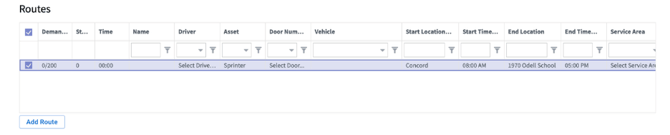
- Enter start time
- Enter end time
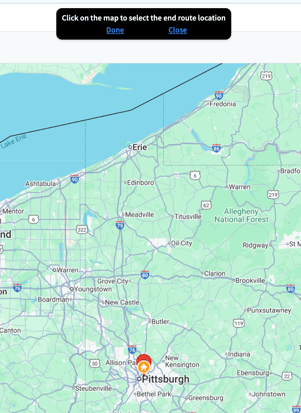
- Click on End Location and drop a pin on the map where the driver while finish the last stop
-
Scroll to the right to copy/delete buttons
- Duplicate the route by clicking the copy icon
- Delete the route by clicking the delete icon
Step 5: Finalize optimization
-
Scoll lower to the Optimization Options.
- Select which options should be included on the route
Setting What It Does When to Use Include Lunch Stops Adds an automatic lunch stop at the time you specify. When drivers must take a scheduled lunch break. Add Padding for Stop Time Windows Expands stop time windows by the number of hours you enter (decimals allowed). When customers are flexible about early/late arrivals. Force Route Departure Sets the driver’s departure time to the exact start time in the optimization table. When departure time must be fixed. (Unchecked) Force Route Departure Lets Maven choose the optimal departure time to meet all stops and time windows. When departure time can be flexible.
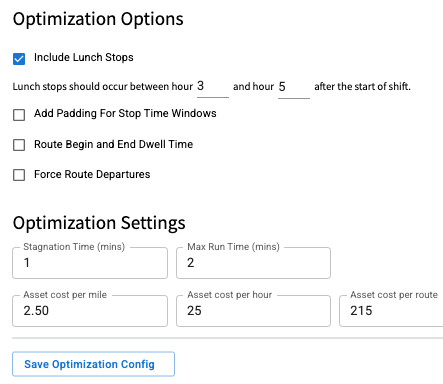
- Select Optimization Settings
Setting What It Does When to Use Stagnation Time (min) Sets the minimum time Maven will run the optimization. Use at 2 minutes or more, especially for service centers with 100+ stops. Max Run Time (min) Sets the maximum time Maven will allow the optimization to run. Use when you want to cap processing time and avoid long runs with minimal benefit. Cost Inputs (per mile, per route, per hour) Applies your fixed and variable cost estimates to the optimization logic. Use when you want Maven to factor asset cost, mileage cost, and driver pay into routing. Save Optimization Settings Saves all timer and cost configurations. Click after entering all your values. - After making selections, click Save Optimization Settings.
- Click create plan
Step 6: Review Optimized Routes
- When the optimization finishes, the system returns to the Plan & Dispatch map view.
- Clicking a route displays:
- The estimated route the driver will take
- The estimated start and end times
- The number of stops assigned
- The estimated ETAs for each stop
- Select each route to verify stop assignments and make adjustments as needed.
- To run the optimization again, bulk‑delete routes by selecting the top route, holding Shift, selecting the last route, opening the three‑dot menu, and choosing Delete.