.png?width=450&height=117&name=MavenLogo_Horizontal_WhiteType01%20(1).png)
Overview
Pair a Vehicle Data Adapter (VDA) to the correct vehicle in Fleet Admin. Proper pairing ensures that engine and ELD data attach to the right truck.
Pair the VDA to the vehicle
-
Open Fleet Admin and go to the Vehicles page.
-
Identify the VDA installed in the truck.
-
Confirm the adapter number from the hardware in the truck or internal records.
-
-
On the Vehicles page:
-
Search for the vehicle by truck number or identifier.
-
Click the vehicle to open the vehicle details page.
-
-
Scroll to the bottom of the vehicle details page.
-
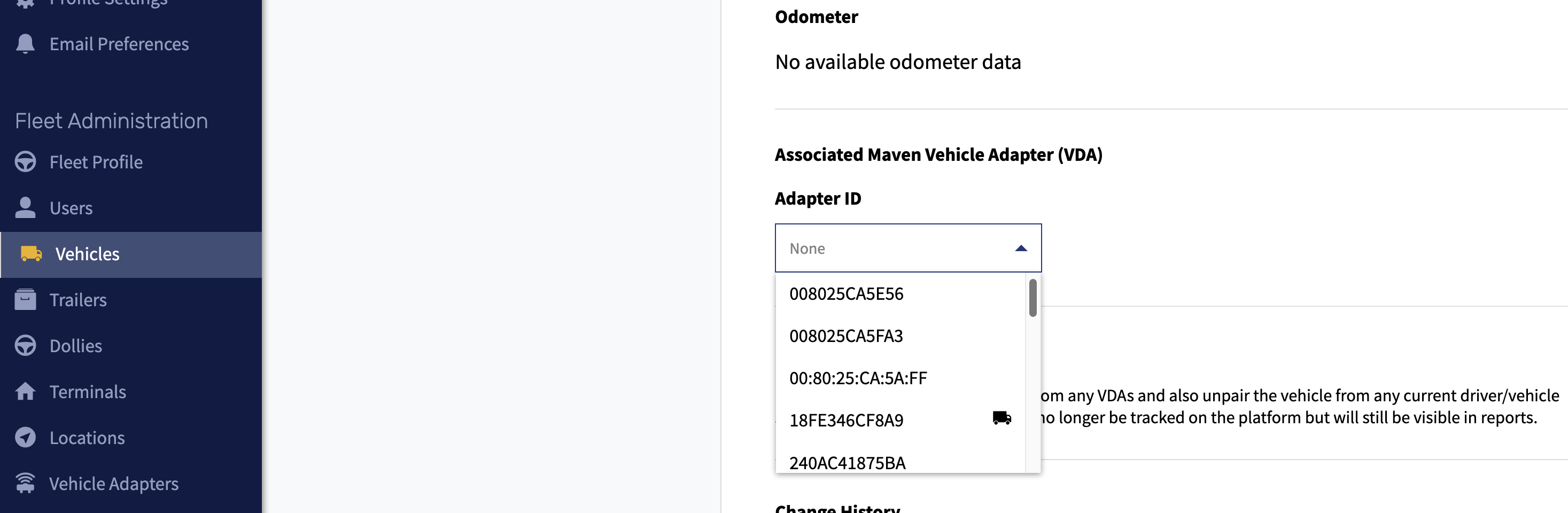
Open the adapter/VDA dropdown.
-
Type the adapter number and select the correct VDA from the list.
-
Have the driver connect in the Maven app
-
On the driver tablet, open the Maven app.
-
Follow the standard vehicle connection flow to connect to the truck that now has the paired VDA.
-
Confirm that the tablet shows a successful connection to the vehicle/adapter