.png?width=450&height=117&name=MavenLogo_Horizontal_WhiteType01%20(1).png)
Table of CONTENTS
supported file formats
Maven accepts:
-
CSV
-
XLSX
required order fields
File must include the following data:
-
Service Due Date (MM/DD/YYYY)
-
Shipment Type (Delivery)
-
Order or Pro Number (Must be unique)
-
Customer Name
-
Customer Number
-
Address
-
City
-
State (2-letter code)
-
Country (2-letter code)
-
Piece Count
-
Open Time (24-hour format)
-
Close Time (24-hour format)
How to upload and submit orders
-
Log in to
dispatch.mavenmachines.com -
Navigate to the Inbound Shipments tab

-
Under Maven Admin on the right side of the screen, select Upload Shipments
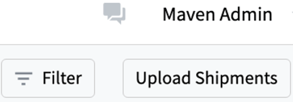
- When the Upload Shipments screen opens, choose one of the following:
- Upload file: Drag and drop a shipment file or click Upload file.
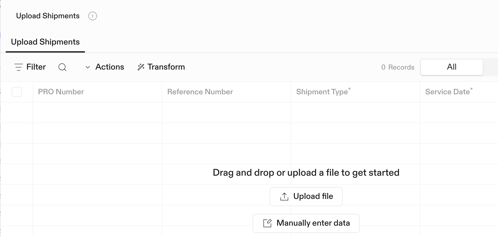
- Upload file: Drag and drop a shipment file or click Upload file.
- Review the added shipments using the All, Valid, and Invalid filters.
-
Resolve any required field warnings
-
Review and finalize the upload
-
Click Import Records
- After the file processes, a confirmation screen appears showing the number of imported and rejected orders.
- Review the results.
- Select Submit to finalize the upload.
- The system returns to the Inbound Shipments page.
Once complete, your orders will appear on the Inbound Shipments page.