.png?width=450&height=117&name=MavenLogo_Horizontal_WhiteType01%20(1).png)
What is the Users Page?
Contains all driver profiles associated with the fleet. Provides key details about identity, assignments, and fleet structure.
This page is essential for:
-
Confirming driver records
-
Validating driver assignments
-
Supporting driver-related issues quickly
-
Identifying driver terminals and vehicle associations
- Active/deactivated Users
- Roles
How to Access the Users Page
-
Log in to the Fleet Portal (Manager Portal).
-
Select Fleet Administration from the Admin menu.
-
Click Users in the left navigation menu.
The Users page will display a list of all drivers associated with the fleet.
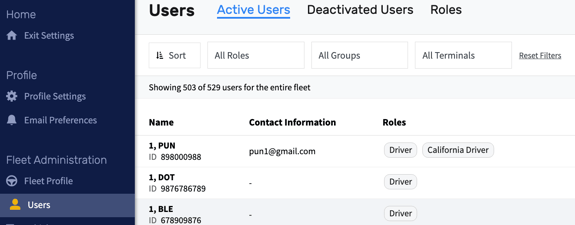
Searching for a Driver
To quickly locate a user:
-
Click the Search by name or employee ID field.
-
Enter the driver’s last name or employee ID.
-
Press Enter.
-
Select the driver from the results list.
What is found on the User Profile Page
- First Name & Last Name
- HR Contact Email & Phone
- Roles (e.g., Driver, State‑specific Driver)
- Driver’s License Number & State
- Terminal assignment (e.g., Philadelphia)
- Groups (e.g., Maven Entire Fleet)
- Employee ID
- HOS Log Timezone
- HOS Log Start Time (e.g., Midnight)
- Driver is ELD Exempt (toggle)
- HOS Ruleset
- Reset Password option
- Deactivate User option
- Change History (type, description, who performed, timestamp)