.png?width=450&height=117&name=MavenLogo_Horizontal_WhiteType01%20(1).png)
What is the Vehicle Page?
The Vehicle Page is where you view and verify detailed information about a specific vehicle in your fleet. This includes identification data, hardware status, and connected adapter information.
This page is essential for:
-
Confirming vehicle assignment
-
Troubleshooting hardware issues
-
Validating VIN and vehicle specs
-
Supporting drivers during incidents
How to Access the Fleet Vehicle Page
-
Log in to Fleet Portal (Manager Portal). https://manager.mavenmachines.com/
-
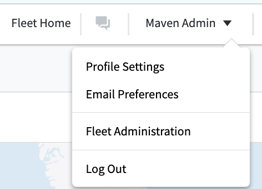
Select Fleet Administration from the Admin menu.
-
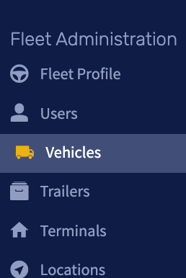
In the Fleet Admin portal, click Vehicles in the left navigation menu.
This opens the Vehicles list page.
Searching for a Vehicle
To quickly find a vehicle:
-
Click the search bar in the top-right corner of the Vehicles page.
-
Enter the vehicle (provided by the driver or fleet manager).
-
Select the matching vehicle row.

vehicle details
-
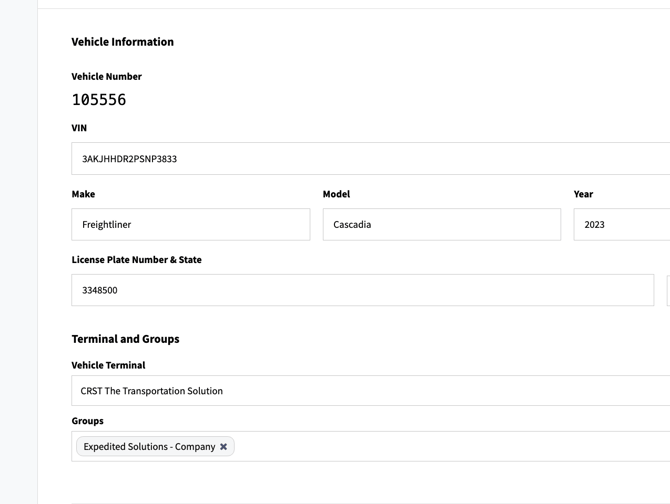
Click on a vehicle to view its details
-
VIN (Vehicle Identification Number)
-
Make / Model / Year
-
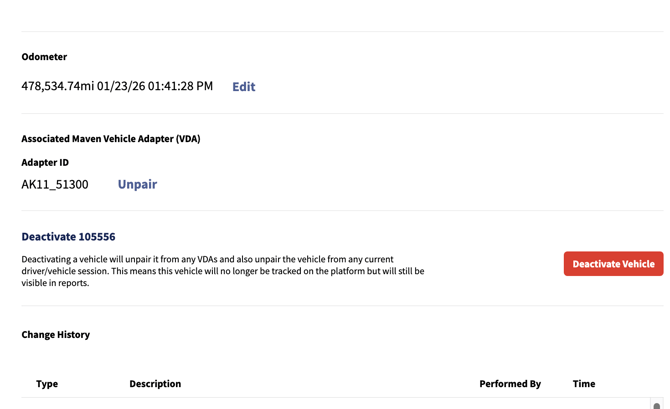
Vehicle Adapter (VDA) Information
- The VDA is the device that connects the vehicle to Maven’s telematics system.
-
Odometer
-
Vehicle Terminal and Group
-
License Plate Number & State
-
Change History
-
Deactivate vehicle button